
1. Go to the Functions Settings page and click on Products link.
2. You can then use the display filter to view products by type: Catering or Extra/Equipment
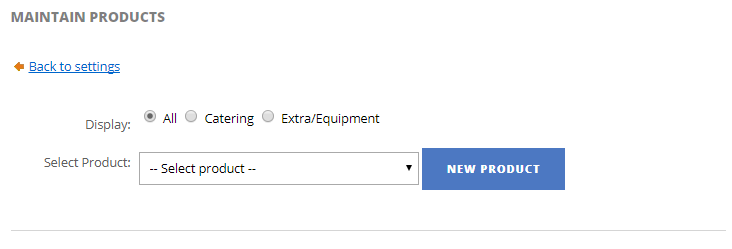
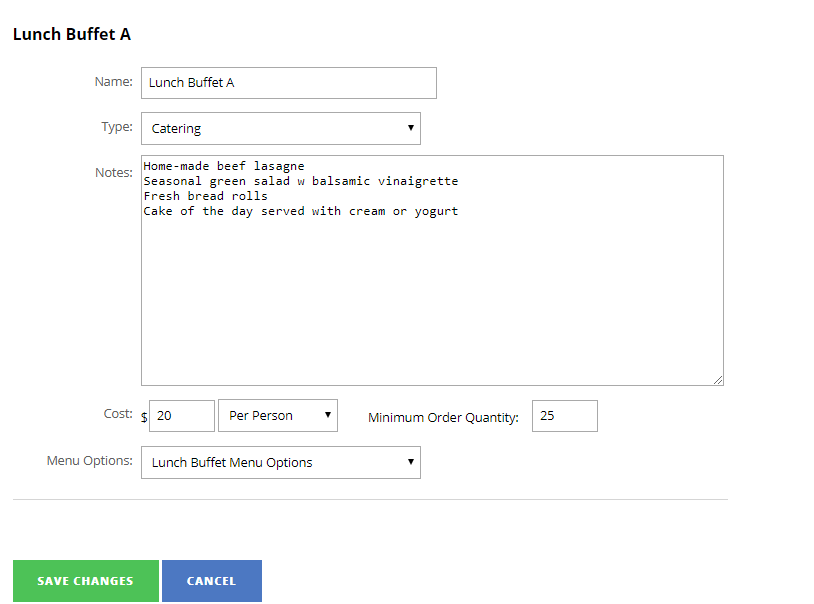
3. Select the product that you want to update from the product drop down list. Update product form is displayed after selecting a product from the drop down list (shown below)
Example - Catering Product
Example - Extra/Equipment Product
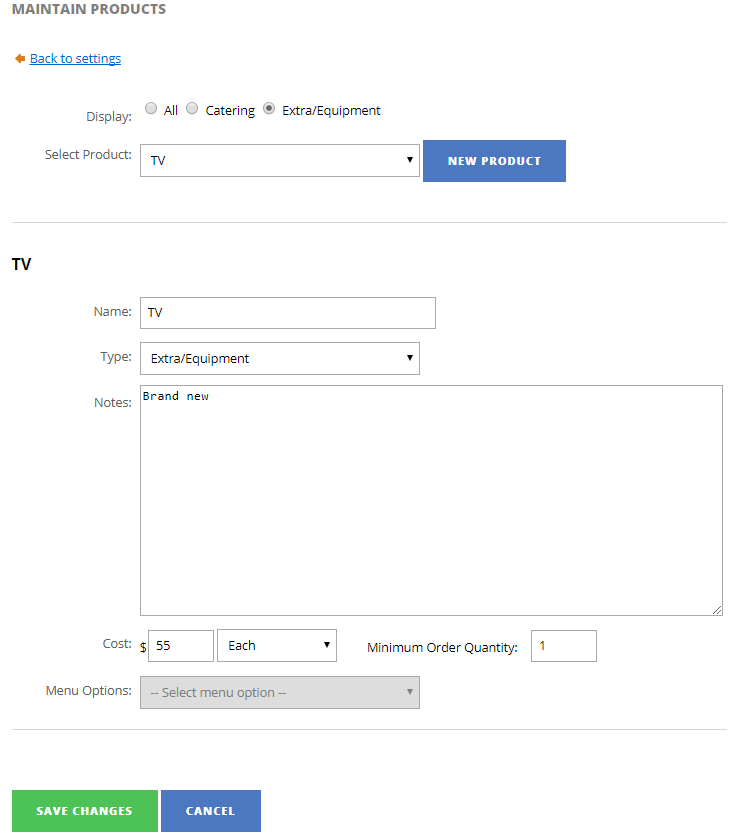
4. Make the necessary changes on the following fields:
- Name - name of the product you are creating (e.g. Lunch Buffet A, Set Menu B, Projector, TV)
- Type - product type (e.g. Catering or Extra/Equipment)
- Notes - description of the product. More appropriate for catering products that is composed of multiple items like buffets and set menus.
- Cost - product unit cost
- Unit - unit of measure
- Minimum Order Quantity - indicate what is the minimum orders for this product.
- Menu Options - menu options linked to this product (Catering product only)
5. Click Save Changes button to update the product.