Creating a New Membership
It includes details on filling in necessary information such as name, gender, email address, date of birth and membership categories.
Following this guide will ensure a smooth and accurate addition of a new member to the system.
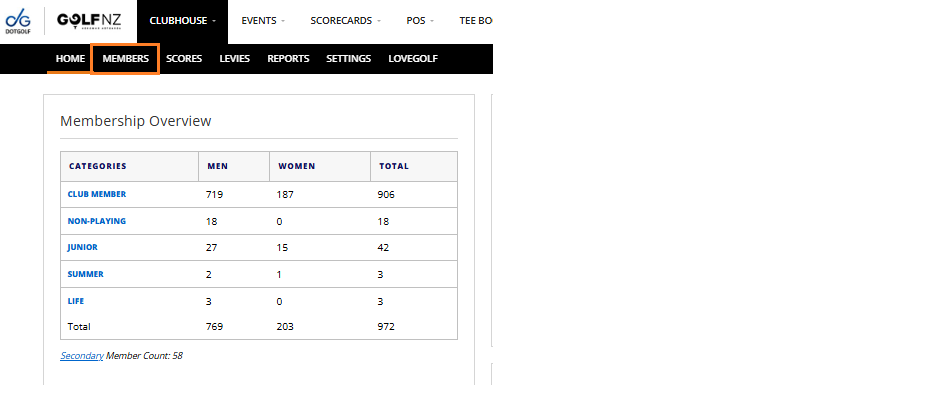
1. Navigate to the Members tab from the black menu bar.
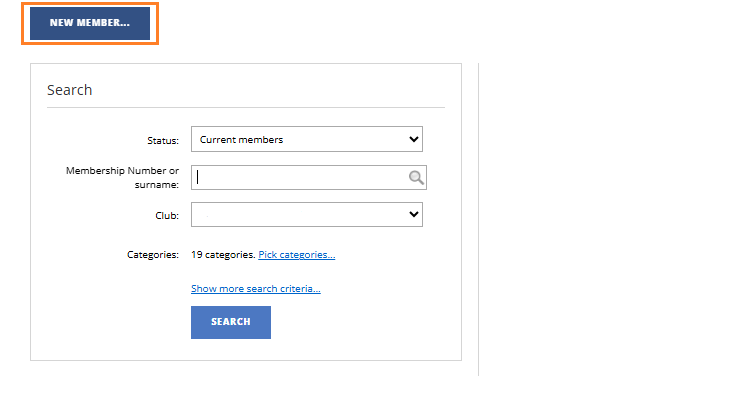
 2. Select the blue "New Member" button in the top left corner.
3. If the new member at your club has provided a previous membership number, insert this number into the "Previous Membership" field and select the member from the drop down.
By doing this, the Handicap Index and Scores form the previous membership will be merged with the new one.
For more details on Merging Previous Memberships, please refer to the following knowledge base article: Merging Previous Memberships
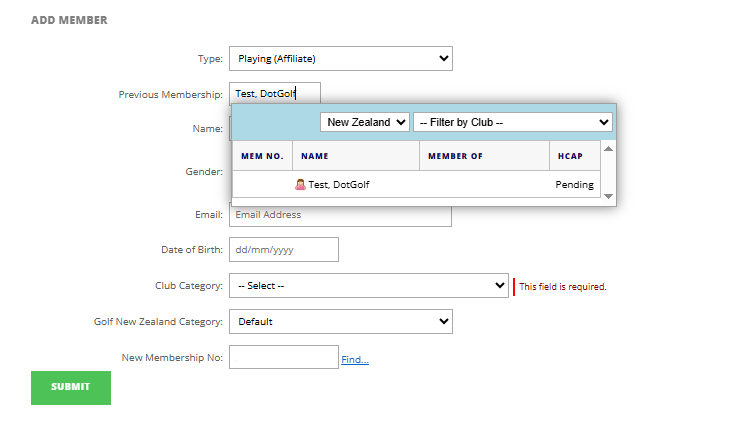
4. If the member does not have a previous membership number, enter in the following details for the member:
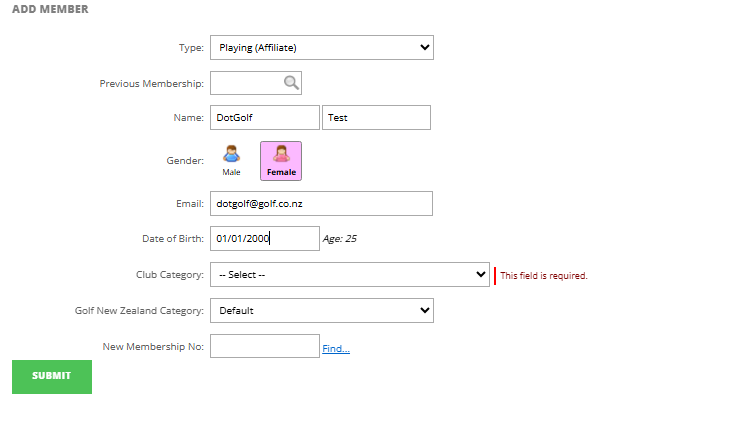
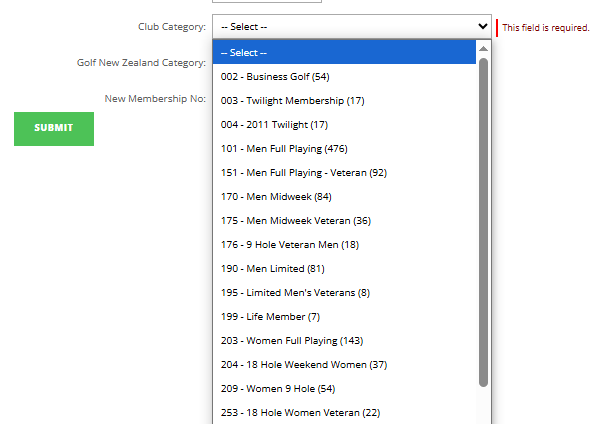
5. Select the Club Category, eg. Full Playing, Weekdays Only etc.
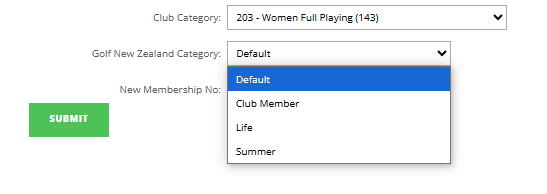
6. Select the Golf NZ Category.
7. If you would like to update/change the generated membership number, you can do this by typing the new number into the "New Membership No" field - as long as the membership number is not currently in use.

8. Select Submit.
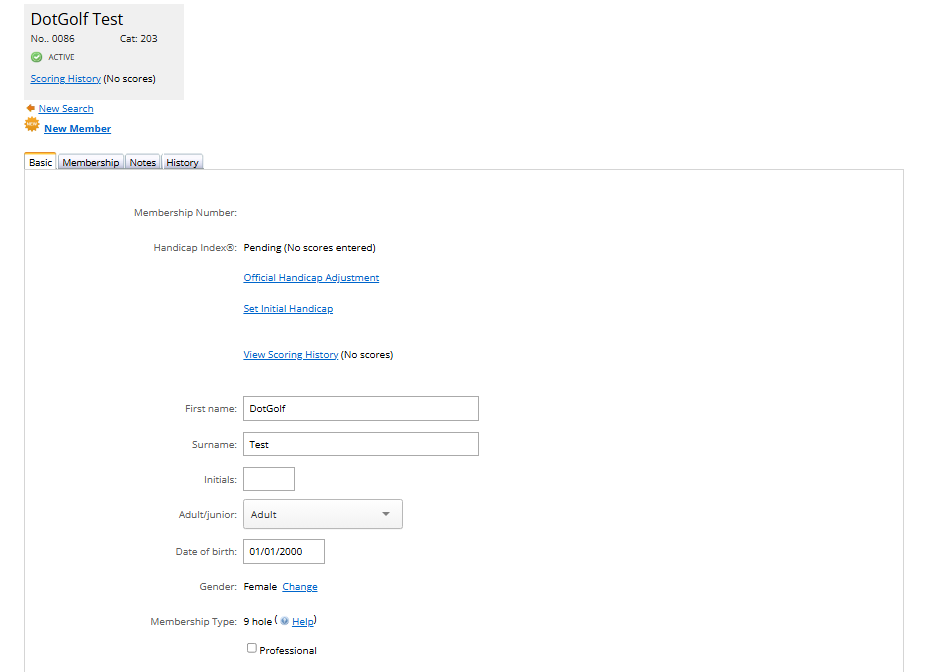
9. The member now has a profile in DotGolf. From here, you can update any required membership details, such as address and emergency contacts.