
This article explains how to configure Rounds Accounts for your club. Once configured, eligible membership categories can have their rounds automatically tracked, allowing members to purchase additional rounds and view their remaining balance.
Note: Some parts of the configuration require assistance from DotGolf Support.
Prerequisites
Before configuring Rounds Accounts, the RND account type must be enabled for your club. If it is not already available, please contact DotGolf Support to have it enabled.
Configuration
1. Select or Create a Membership Category
Choose the membership category that will use Rounds Accounts.
Recommendation: If you intend to use Initial Credits, create a new membership category with no existing members before enabling Rounds Accounts.
The category can be configured as either a 9 Hole or 18 Hole category.
2. Enable Rounds Management
Within the membership category:
- Enable the Round Management checkbox.
- Select ROUND as the Account Type.
- Enter an Initial Credits value (if required).
- Enable the Top-up Reminder and configure the balance threshold (a value of 2.0 rounds is recommended).
3. Configure Top-up Prices
Navigate to Accounts & Loyalty Settings and configure the Account Top-up Prices for the Rounds account.
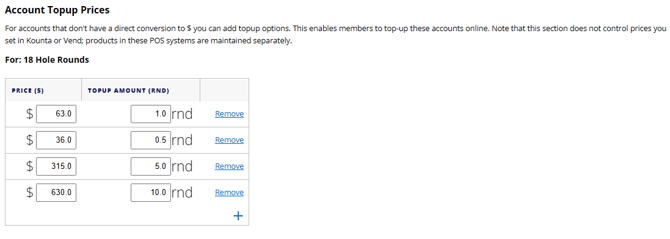
These prices determine the available top-up options if members are permitted to purchase additional rounds online.
Selling Round Credits
If your club uses POS to sell round credits, the required products must be configured before they can be sold to members.
Please contact DotGolf Support if these products need to be configured for your club.