
Change of Home Club Request
A home club change request is a formal process that allows members to switch their affiliation from one club to another within the same organization.
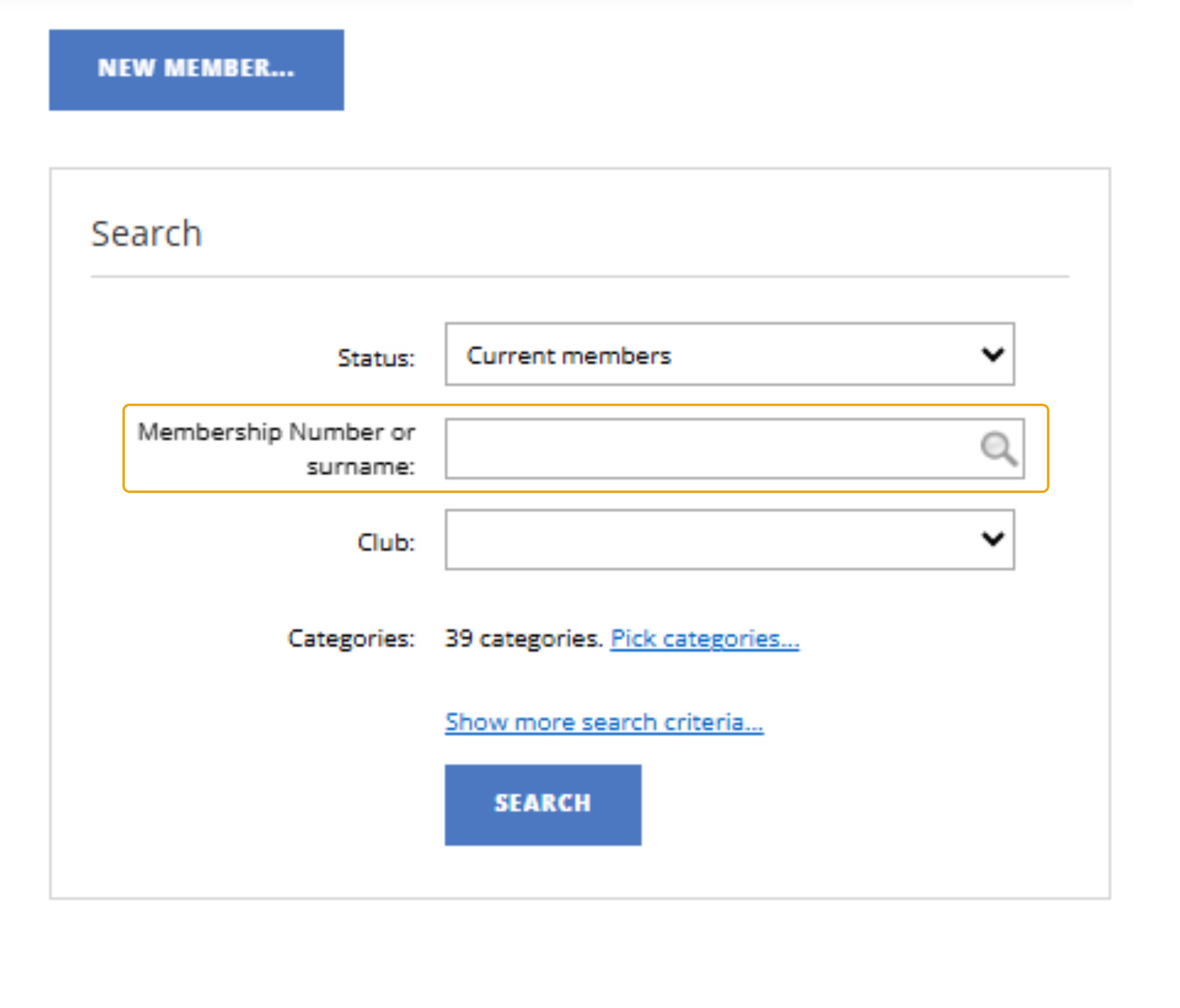
1. Search for the Member that you wish to change the Home Club for.
This can either be done by searching the Membership Number or the Last, First name.
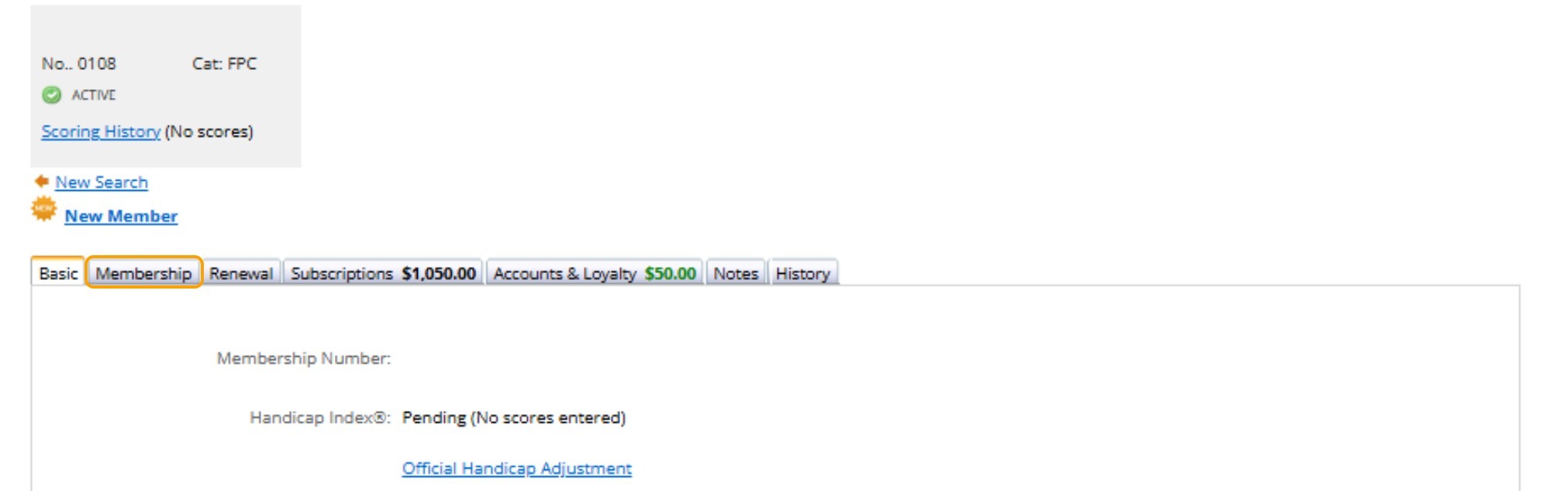
2. Once you have the membership details open, select the "Membership" tab.
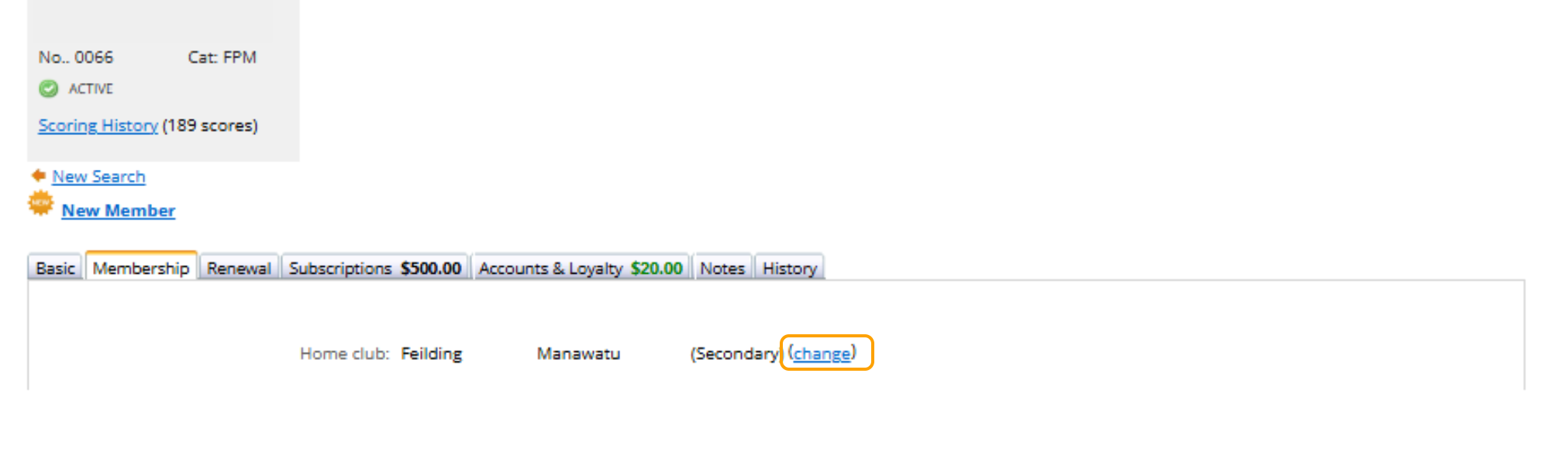
3. Under the Home Club details, select "Change"
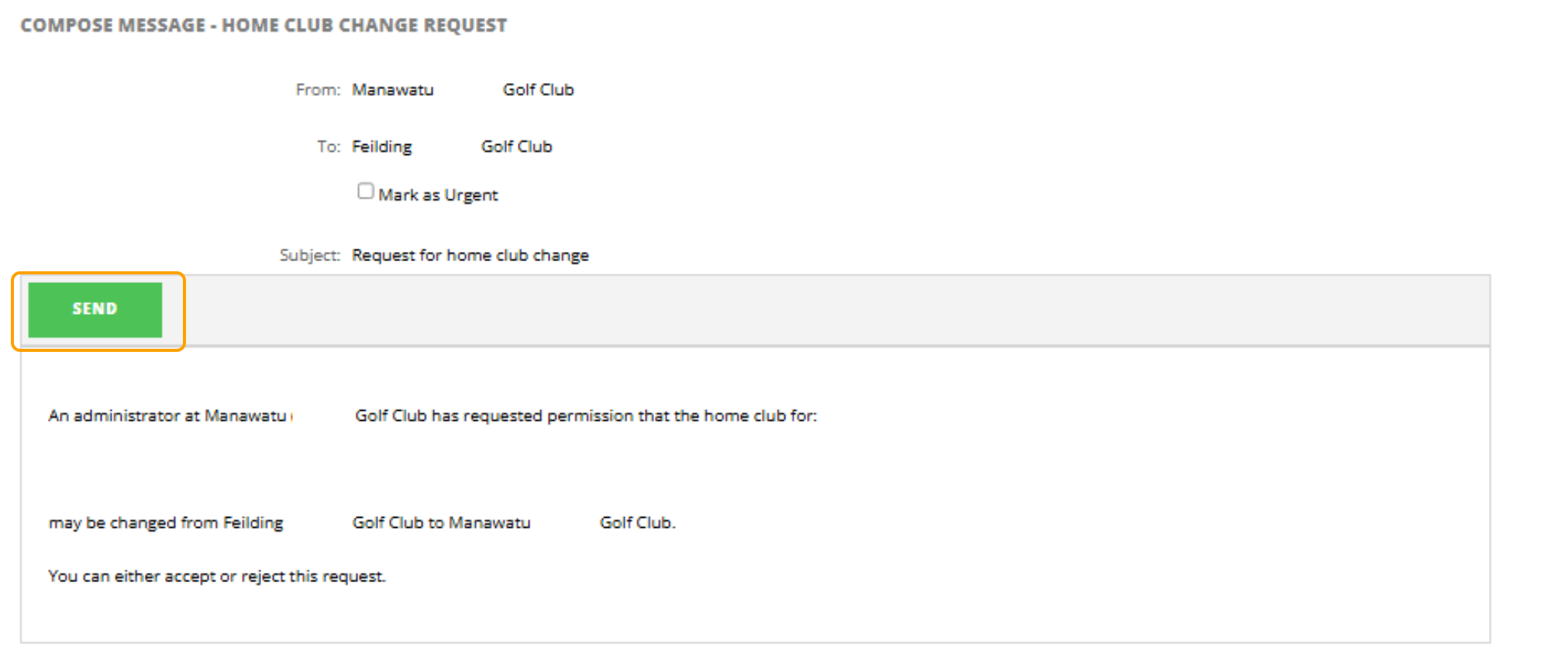
4. Check the details are correct and click "SEND". This will send the request to the club listed.
Note: You do have the option to "Mark As Urgent"
5. The club will receive this change request and either Allow or Reject this request.
Action a Home Club Change Request - Steps for previous home club
This guide provides step-by-step instructions on how to action a home club change request on DotGolf Clubhouse. By following these steps, users can easily navigate to the inbox, view the request, and choose to allow, reject, or ignore it. This guide is essential for anyone who needs to manage home club change requests effectively.
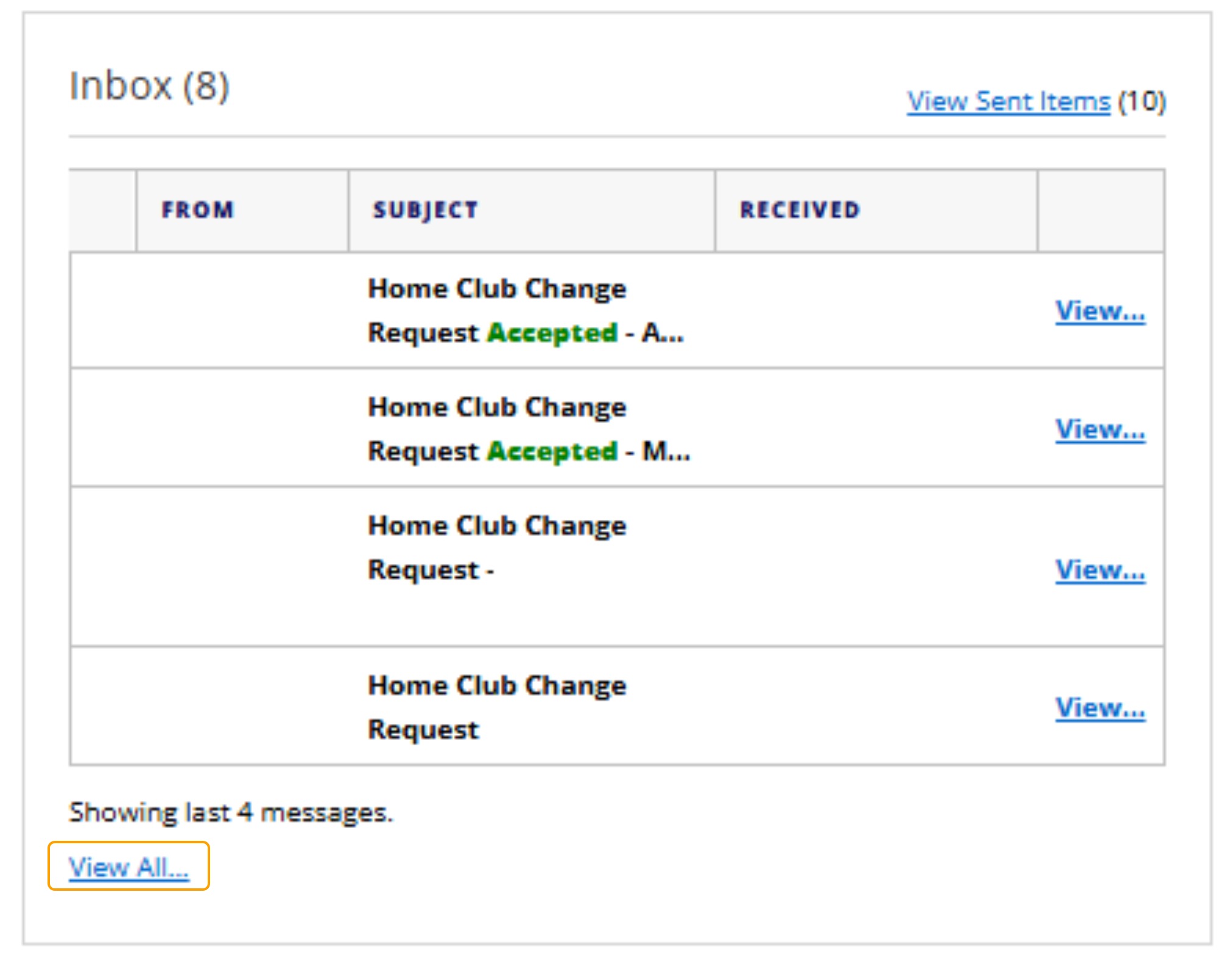
1. Navigate to the Club Inbox on the Clubhouse Home page.
2. Select "View All" to view all messages in the Club Inbox
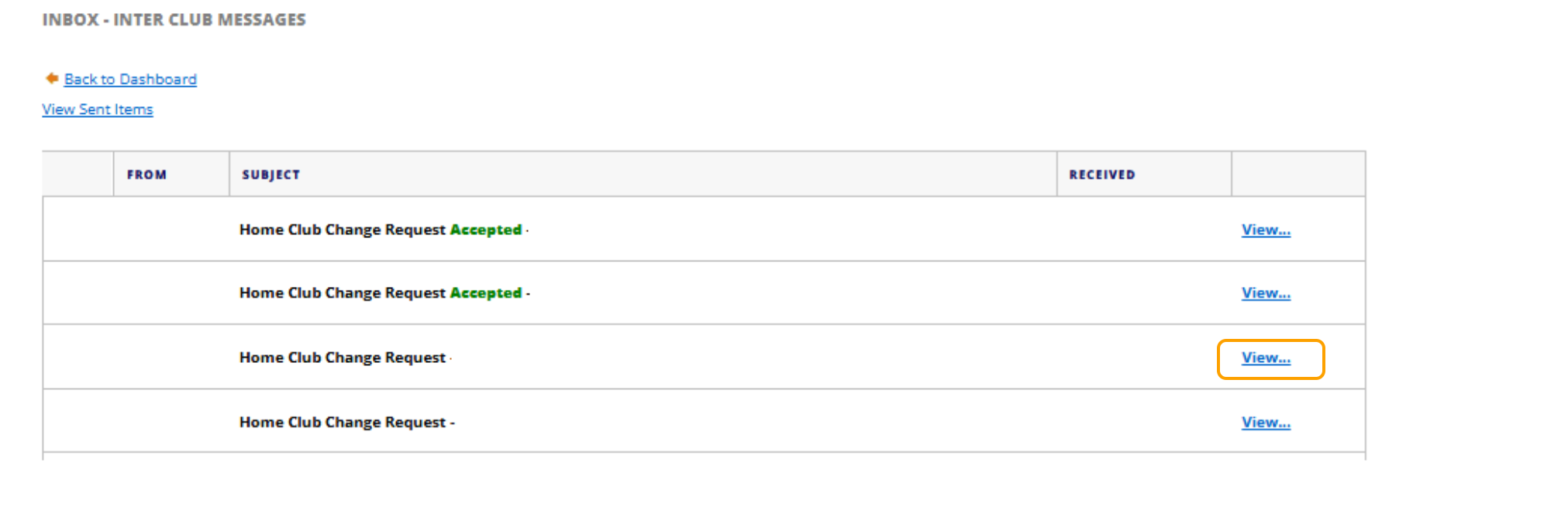
3. Find the request that you are looking for and select "View"
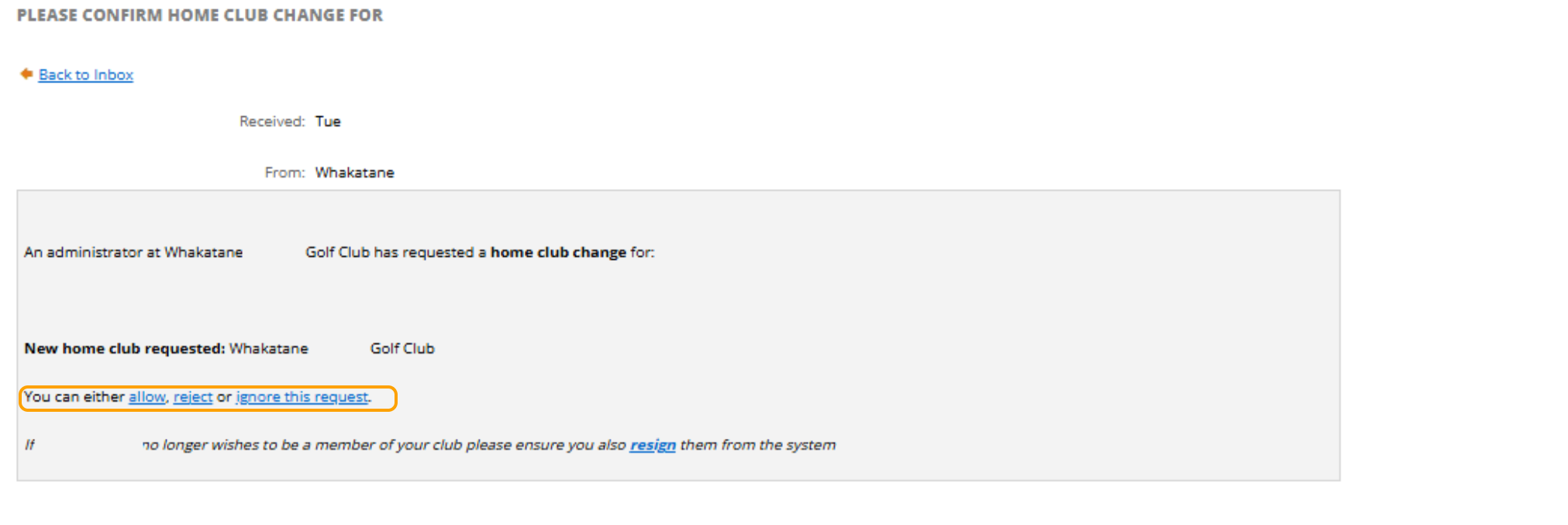
4. You have three options: Allow/Reject/Ignore this request.
5. This completes the home club change request.